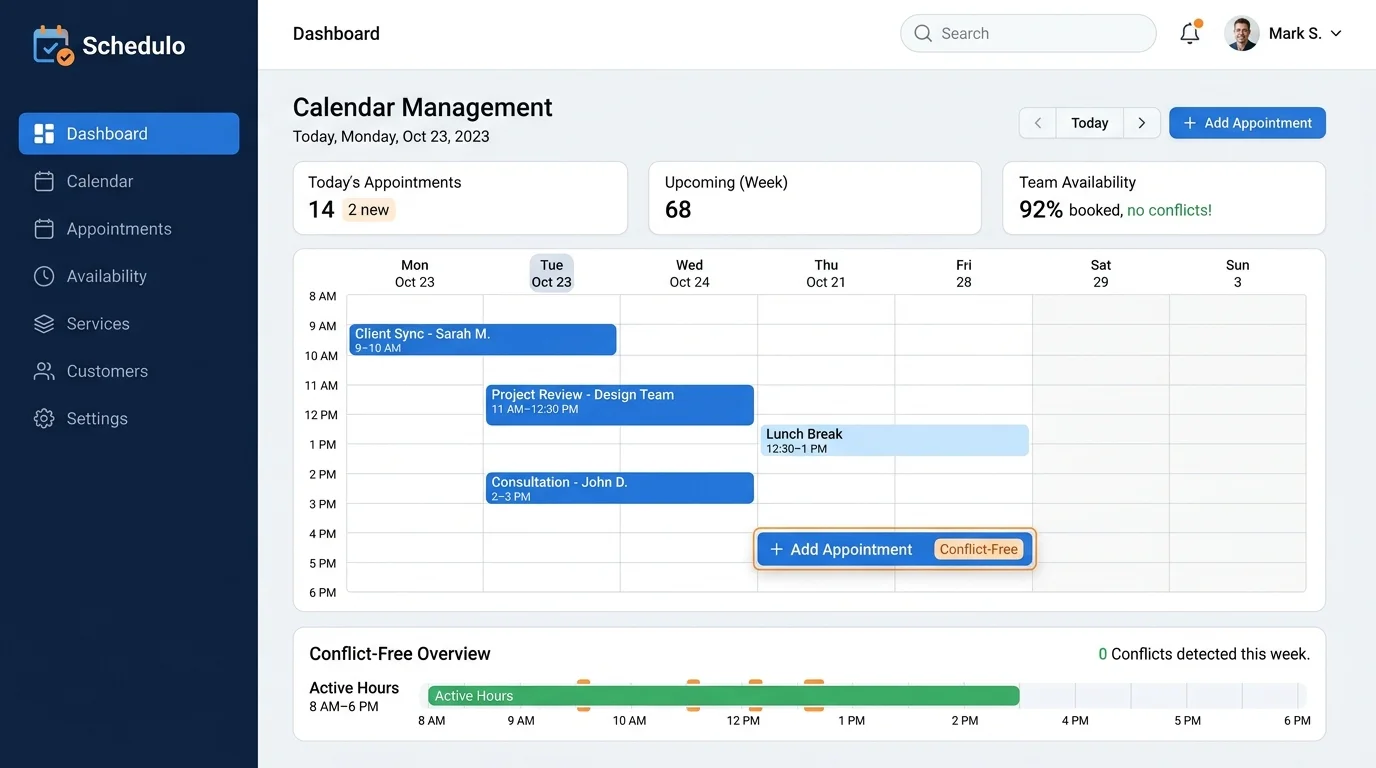
Double-booked appointments happen when two customers are scheduled for the same time, staff member, or room. It is one of the most common scheduling problems in service businesses, and it causes immediate stress for both staff and customers.
When a double booking occurs, a customer arrives to find someone else already in their slot. A staff member is forced to choose between two waiting people. Waiting times stretch, productivity drops, and the customer experience suffers.
The good news is that double bookings are almost entirely preventable. This guide explains exactly why scheduling conflicts happen, provides practical ways to stop them, and includes a step-by-step how-to guide for setting up a conflict-free system using AppointLane.
Table of Contents
- At a Glance
- What Is a Double-Booked Appointment?
- Why Do Double-Booked Appointments Happen?
- 10 Practical Ways to Prevent Double-Booked Appointments
- Step-by-Step How-To Guide: Setting Up Conflict-Free Scheduling
- Step 1: Centralize Your Calendar
- Step 2: Define Exact Service Durations and Buffers
- Step 3: Set Strict Staff Availability Rules
- Step 4: Enable Real-Time Availability Checks
- Step 5: Integrate Walk-Ins into the Same View
- How AppointLane Prevents Scheduling Conflicts
- Manual Scheduling vs. Appointment Booking Software
- How to Handle a Double Booking When It Already Happens
- Double Booking Prevention Checklist
- Final Thoughts
At a Glance
- The Problem: Two customers booked for the same time slot, staff member, or resource.
- Main Causes: Manual scheduling, unsynced booking channels, and outdated staff availability.
- The Solution: Centralized appointment booking software with real-time availability checks.
- Best Tool Approach: AppointLane (manages appointments and walk-ins in one unified workspace).
What Is a Double-Booked Appointment?
A double-booked appointment is a scheduling conflict where two or more customers are assigned to the same time slot, staff member, room, or resource.
Common Examples of Double Bookings:
- Same Staff Member: Two customers are booked with the same employee at 2:00 PM because two different people had access to the calendar and did not see the other booking.
- Same Room or Resource: Two different staff members book two different customers in the only available treatment room at the same time.
- Walk-In + Appointment Conflict: A receptionist accepts a walk-in customer, not realizing a scheduled appointment is arriving in five minutes.
- Multiple Booking Channels: A customer books a slot online, but the phone receptionist doesn't see the update and books the same slot for a caller.
Double bookings happen when availability information is fragmented, outdated, or invisible to the person making the booking decision.
Why Do Double-Booked Appointments Happen?
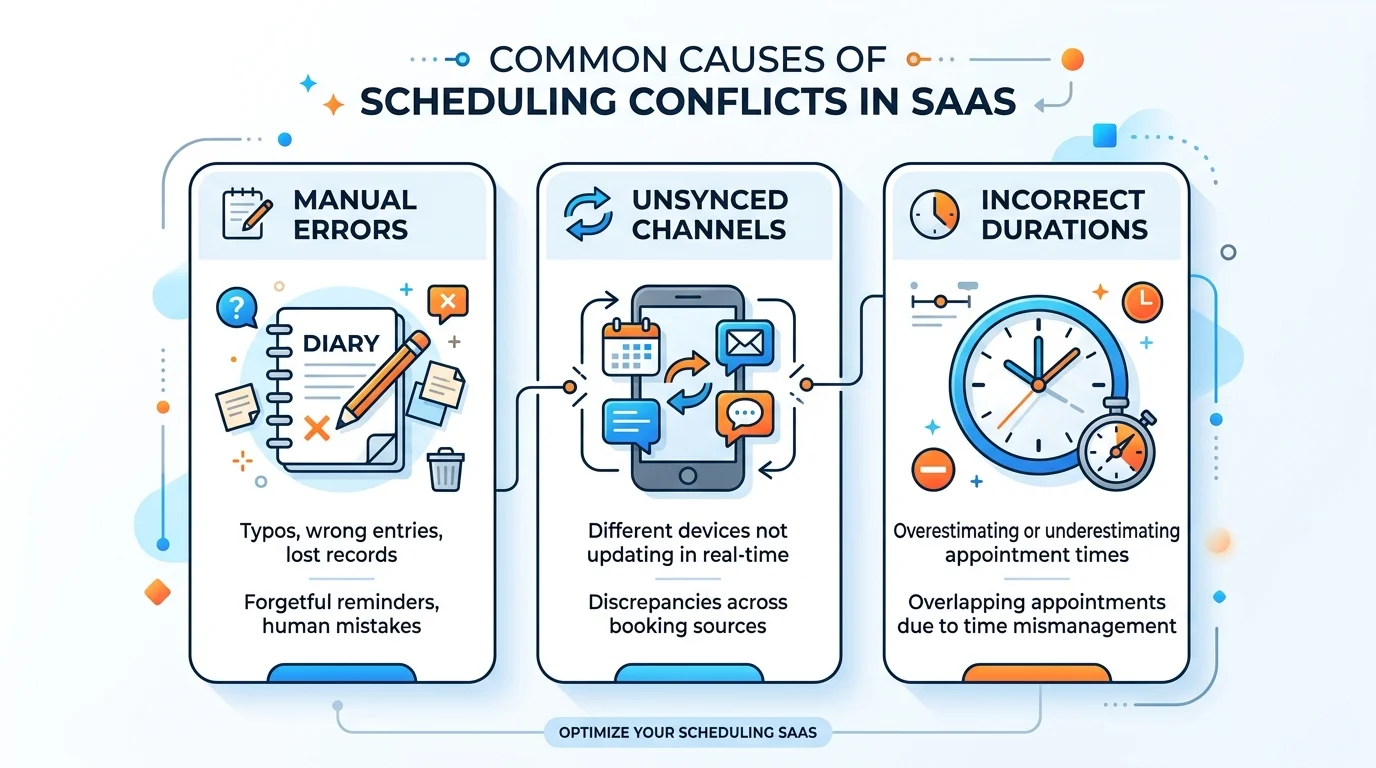
Double bookings are rarely caused by carelessness. They are usually a symptom of broken scheduling processes. Here are the most common causes:
- Manual Scheduling: Using paper diaries or spreadsheets makes it impossible to block a slot the second it is booked.
- Unsynced Booking Channels: Phone, website, and in-person bookings do not share one live availability source.
- Outdated Availability: A staff member takes a day off, but the booking system is not updated to block that time.
- Incorrect Durations: A 45-minute service is set as 30 minutes in the system, causing every appointment to overlap with the next.
- Missing Buffer Time: Back-to-back appointments overlap because there is no transition time for cleaning or paperwork.
- Separate Walk-In Tracking: Walk-ins and appointments are managed on different systems, hiding the true daily capacity.
10 Practical Ways to Prevent Double-Booked Appointments
You do not need to implement all of these at once, but the more you apply, the fewer conflicts you will see.
1. Use One Central Appointment Calendar
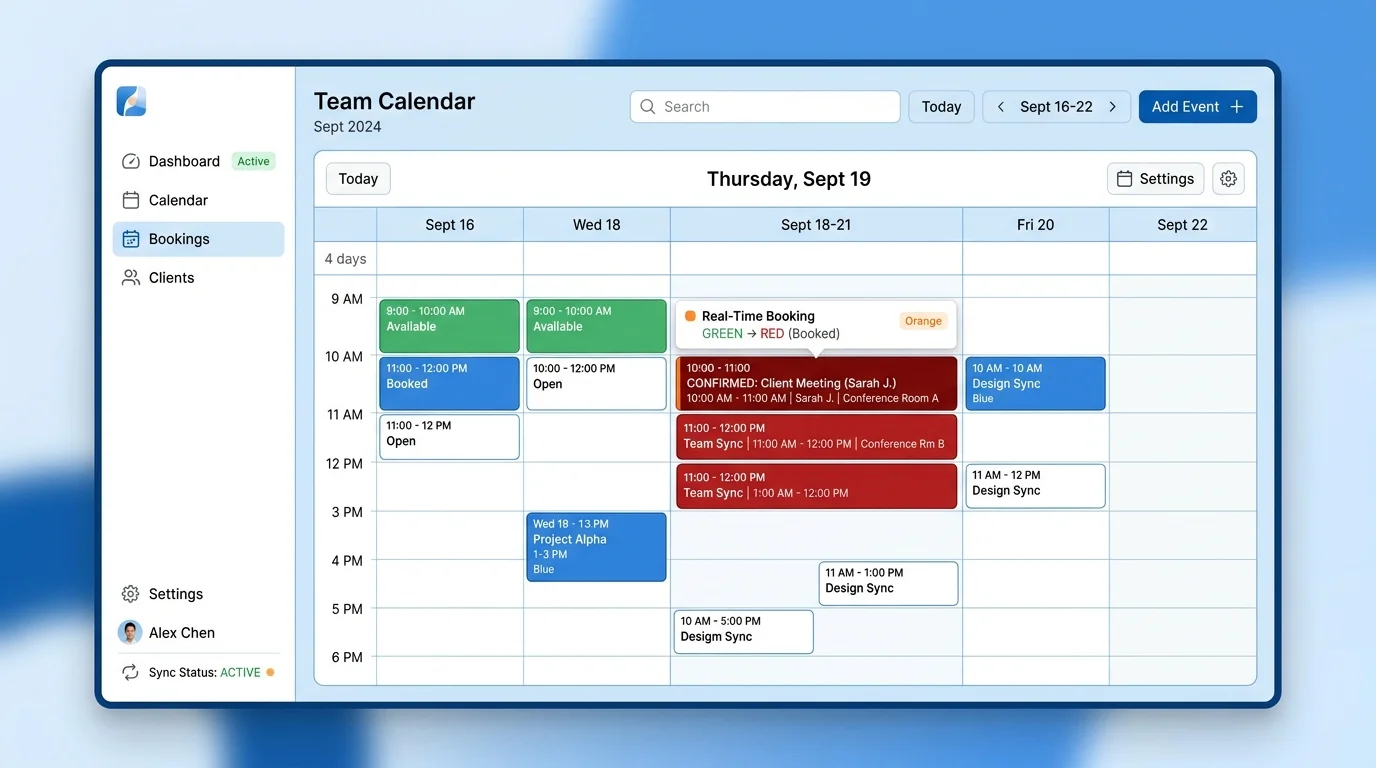
If your appointments live in a paper diary, a spreadsheet, and an online tool, you do not have a scheduling system. You have competing versions of the truth. A single, central digital calendar shows a slot as unavailable the exact moment it is booked.
2. Keep Staff Availability Up to Date
A booking system is only as accurate as the availability it holds. If a staff member’s schedule changes, the booking system must be updated immediately. Block time off as soon as leave is approved, not the morning of the appointment.
3. Set Accurate Appointment Durations
If a service consistently runs longer than the allocated slot, adjust the duration in your software. It is better to have a slightly longer slot than to create a booking conflict that affects two customers.
4. Add Buffer Time Where Necessary
Buffer time is a reserved gap before or after an appointment that no one else can book. Use it for cleaning, preparation, documentation, or travel time. This prevents back-to-back appointments from overlapping.
5. Control Who Can Book Each Service
Connect specific services to specific staff members or rooms. This prevents a customer from booking a specialized service with a staff member who is not trained for it, which often leads to last-minute schedule changes and conflicts.
6. Sync All Booking Channels
Every booking—whether it arrives by phone, website, or in-person—must update the same live availability view. If a customer books online, the reception team must see it instantly before accepting a walk-in.
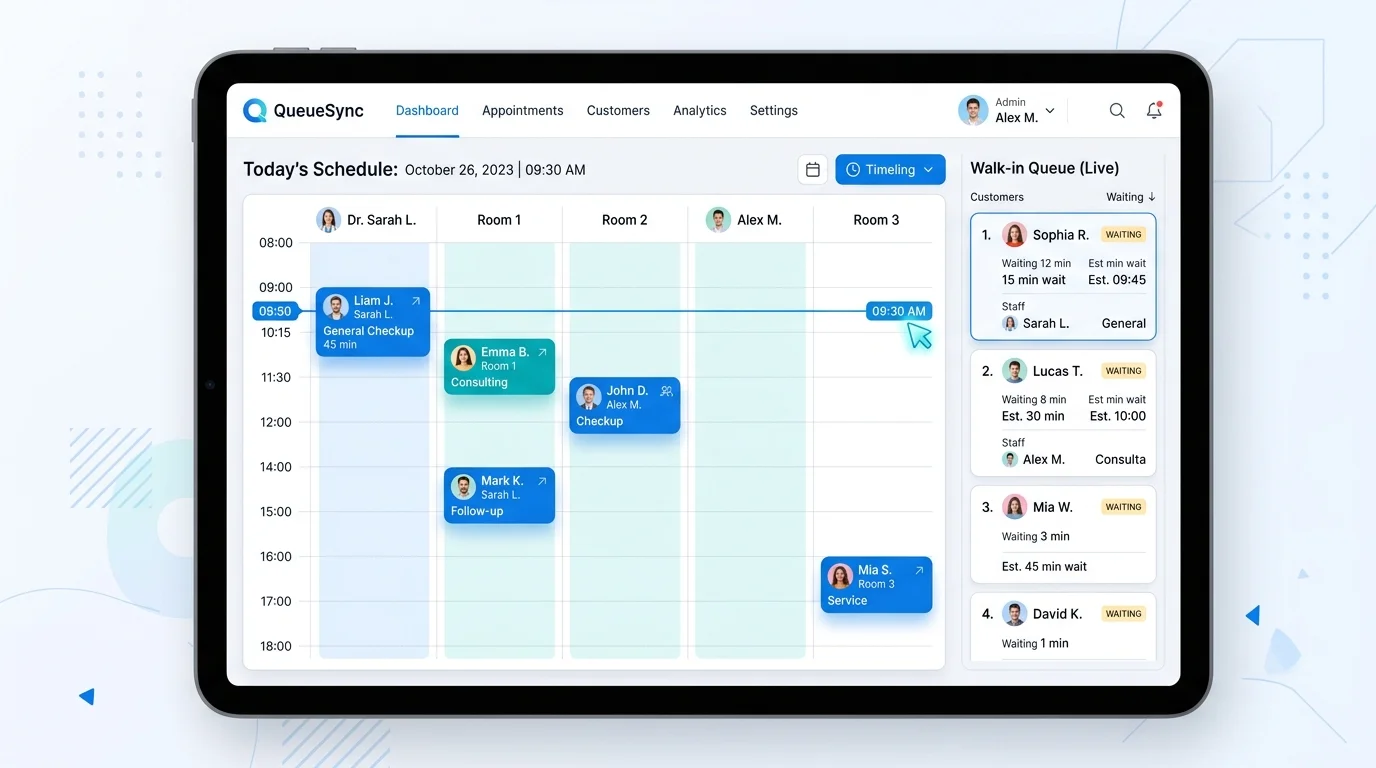
7. Manage Walk-Ins Alongside Appointments
Managing appointments and walk-ins separately makes it impossible to see your true capacity. AppointLane solves this by bringing online appointment booking and walk-in queue management together in one workspace, giving you a single view of all daily demand. Learn more about managing appointments and walk-ins together and how to reduce customer waiting time.
8. Use Automated Confirmations
Confirmations lock in the appointment for the customer. Reminders reduce appointment no-shows, which reduces the need for last-minute schedule reshuffles that often cause double bookings.
9. Review the Schedule Daily
Spend five minutes every morning reviewing the day's bookings. Check for overlapping staff assignments, missing room allocations, and unexpected walk-in capacity issues before customers arrive.
10. Use Dedicated Appointment Booking Software
Manual scheduling fails when complexity increases. Dedicated appointment booking software manages staff schedules, durations, booking rules, and multiple locations automatically, removing the human error that causes double bookings.
Step-by-Step How-To Guide: Setting Up Conflict-Free Scheduling
To physically stop double bookings from happening, you need to configure your scheduling software correctly. Here is a step-by-step how-to guide for setting up a conflict-free system using AppointLane.
Step 1: Centralize Your Calendar
- Move all appointments from paper diaries and spreadsheets into your AppointLane workspace.
- Result: Every staff member looks at the exact same live schedule.
Step 2: Define Exact Service Durations and Buffers
- Go to your Services settings. Set the exact time each service takes. Add a 5-to-10-minute "Buffer Time" after services that require room cleaning or paperwork.
- Result: The system will automatically block out the extra time, preventing the next customer from being booked too early.
Step 3: Set Strict Staff Availability Rules
- Set individual working hours for every staff member. Use the "Exceptions" or "Time Off" feature to block out holidays, sick days, and lunch breaks.
- Result: Customers can only book times when the specific staff member is actually working.
Step 4: Enable Real-Time Availability Checks
- Ensure your public booking page is set to "Automatic Approval" or real-time checking.
- Result: When two customers try to click the same time slot at the same second, the system will only allow one to proceed, physically preventing the double booking.
Step 5: Integrate Walk-Ins into the Same View
- Use AppointLane’s QR code or reception check-in to add walk-ins to the daily dashboard.
- Result: Staff can see that a 2:00 PM appointment is arriving, and they will not accidentally give that time slot to a walk-in customer currently waiting in the lobby. If cancellations occur, you can easily manage appointment waitlists to fill openings without overbooking.
How AppointLane Prevents Scheduling Conflicts
AppointLane is an online appointment booking and queue management system designed to eliminate scheduling gaps. It prevents double bookings by managing availability and customer visits in one unified system.
Key AppointLane Features for Conflict Prevention:
- Centralized Availability: Real-time updates across all booking channels.
- Resource Management: Prevents two staff members from booking the same room or equipment.
- Unified Dashboard: Shows scheduled appointments and live walk-in queues side-by-side.
- Automated Rules: Enforces minimum notice periods, buffer times, and exact durations.
- Customer Self-Service: Allows customers to reschedule via secure links, instantly freeing up the slot for someone else without staff intervention.
Explore AppointLane’s Online Booking Features
Manual Scheduling vs. Appointment Booking Software
| Feature | Manual Scheduling (Paper/Spreadsheets) | Appointment Software (AppointLane) |
|---|---|---|
| Availability | Manually updated, high risk of lag | Managed digitally in real-time |
| Booking Channels | Disconnected (Phone vs. Online) | Fully synced to one calendar |
| Walk-In Management | Separate from appointments | Unified in one daily dashboard |
| Double Booking Risk | Very High | Extremely Low |
| Schedule Visibility | Limited to the person holding the book | Centralized for all staff |
How to Handle a Double Booking When It Already Happens
Even with great software, human error or system delays can occasionally cause a conflict. Here is how to handle it professionally:
- Identify the conflict immediately: The sooner you know, the more options you have to fix it.
- Contact the customer before they arrive: Do not wait for them to show up. Call them, apologize honestly, and explain the situation.
- Offer immediate alternatives: Give them a choice between a different staff member today or a priority slot tomorrow.
- Update the system instantly: Once resolved, fix the calendar so the error does not cascade into the rest of the day's schedule.
- Find the root cause: Did someone forget to update a day off? Fix the process so it does not happen again.
Double Booking Prevention Checklist
Use this checklist to audit your scheduling process weekly:
- [ ] All appointments are in one central digital calendar
- [ ] Staff availability and time off are updated in real time
- [ ] Service durations match reality (including buffers)
- [ ] All booking channels (web, phone, in-person) are synced
- [ ] Walk-ins are tracked in the same system as appointments
- [ ] Automated confirmations and reminders are active
- [ ] The daily schedule is reviewed every morning
Frequently Asked Questions
1. What is a double-booked appointment?
A double-booked appointment is a scheduling conflict where two customers are assigned to the same time slot, staff member, or room due to fragmented or outdated availability data.
2. How do I stop double booking appointments?
You can stop double bookings by using centralized appointment software that checks real-time availability across all booking channels before confirming a slot.
3. Why do appointments get double booked?
They usually happen because of manual scheduling, unsynced booking channels, incorrect service durations, or outdated staff availability.
4. Can appointment software prevent double bookings?
Yes. Software like AppointLane physically prevents double bookings by blocking a time slot the exact second it is reserved, across all connected booking channels.
5. How do I manage walk-ins without double booking?
Manage walk-ins and appointments in the same software workspace. AppointLane allows staff to see scheduled arrivals and live walk-in queues on one screen, preventing capacity overlaps.
6. Should I use buffer time between appointments?
Yes, if your services require cleaning, setup, or paperwork. Buffer time ensures that a slightly delayed appointment does not overlap with the next scheduled customer.
7. How does AppointLane help manage scheduling conflicts?
AppointLane provides a centralized view of staff availability, resource allocation, and real-time booking channels, automatically preventing two customers from claiming the same slot.
Final Thoughts
Double-booked appointments damage customer trust and disrupt daily operations. By moving away from manual tracking and adopting a centralized system, you can eliminate scheduling conflicts.
AppointLane makes it easy to manage appointments, walk-ins, and staff availability in one place, ensuring your schedule is always accurate and your customers are always taken care of.